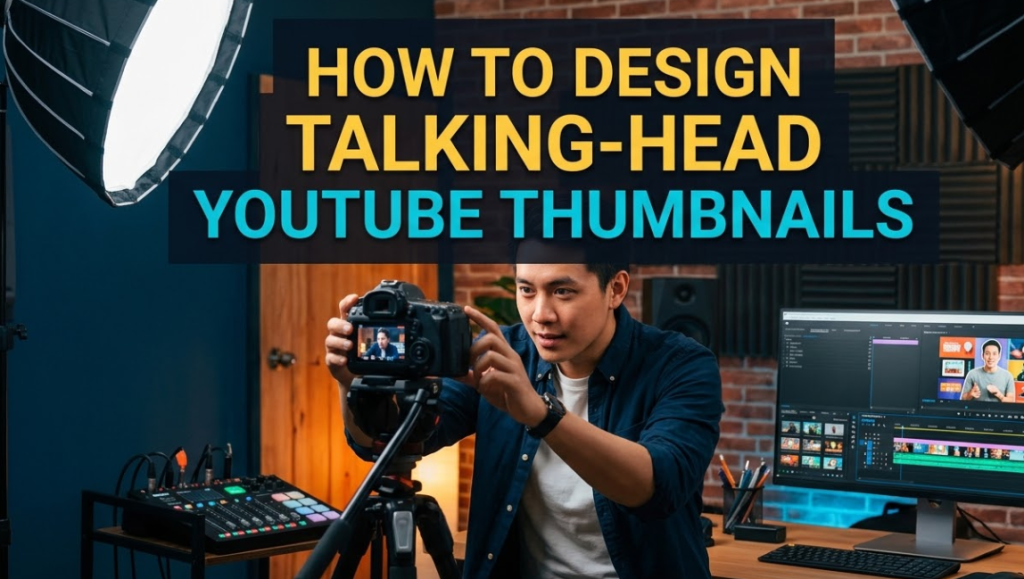
Before anyone clicks your video, they judge your thumbnail. That judgment takes less than a second. And if you make talking-head YouTube thumbnails — those classic face-forward shots where someone looks directly at the camera — you're in one of the most competitive thumbnail styles on the platform.
The good news? Most creators get it completely wrong. That means if you learn to do it right, you stand out fast.
Talking-head YouTube thumbnails work because the human brain is hardwired to notice faces. We're drawn to eyes, expressions, and emotions before we read a single word. When you combine a strong face with the right text, colors, and composition, you create something almost impossible to scroll past.
This guide breaks down everything — from the psychology behind why faces work, to the exact steps you can follow to design thumbnails that get real clicks. Whether you're using Canva, Photoshop, or a tool like Canvix, you'll have a clear process by the end.
Let's get into it.
Why Faces Dominate YouTube Thumbnails
The Science Behind Face Recognition
Humans have a special part of the brain called the fusiform face area. It activates the moment we see a face — even a cartoon one. This happens before conscious thought kicks in. So when a viewer scrolls through YouTube, their eye literally snaps to your face before anything else.
That's a huge advantage for creators who appear on camera. It's also why talking-head YouTube thumbnails have stayed popular since YouTube's early days. The format works because biology makes it work.
Emotion Drives Curiosity
A blank, expressionless face gets ignored. But a face showing shock, joy, disbelief, or confusion? That creates a question in the viewer's mind: What happened? That question is a click waiting to happen.
The most successful creators on YouTube — MrBeast, Mark Rober, Marques Brownlee — all use strong facial expressions in their thumbnails. This is no accident. They've studied what works, and emotion-driven faces are always part of the formula.
The Core Elements of a High-Performing Talking-Head Thumbnail
Getting your thumbnail right means getting each element right. Here's a breakdown of what every strong talking-head YouTube thumbnail needs:
| Element | Why It Matters | Common Mistake |
|---|---|---|
| Face/Expression | Drives emotion and attention | Being neutral or stiff |
| Background | Creates contrast and focus | Cluttered or busy backgrounds |
| Text | Supports the visual story | Too much text or tiny font |
| Color Contrast | Makes the thumbnail pop | Low contrast blends in |
| Composition | Guides the viewer's eye | Centered, unbalanced layout |
| Branding | Builds recognition over time | Inconsistent style |
Each of these works together. Miss one and the whole thumbnail suffers. Nail all of them and you've built something that's hard to scroll past.
Step-by-Step: How to Design Talking-Head YouTube Thumbnails
Step 1 — Capture the Right Expression First
Everything starts with the photo. Even the best designer in the world can't save a boring photo. So before you open any design tool, get your expression right.
Here's what to think about:
- Match the emotion to the video topic. A video about a scary mistake needs a shocked or worried face. A video about a big win needs excitement or pride.
- Exaggerate the emotion. What feels overdone in real life looks normal at thumbnail size. If it doesn't feel slightly embarrassing to make the face, it probably isn't strong enough.
- Look directly at the camera. Eye contact with the viewer creates a personal connection. It feels like the person in the thumbnail is talking to you.
- Use good lighting. Natural light or a softbox makes your face look clean and professional. Shadows on your face will hurt the final result.
Shoot several versions of the same expression. You'll always find one that feels more alive than the others when you zoom out.
Step 2 — Remove and Replace the Background
A cluttered background kills the focus on your face. The background should support the thumbnail, not compete with it.
The cleanest approach is to remove the background entirely and replace it with one that works for your brand. Most design tools now have AI background removal built in. It takes seconds.
Good background options:
- Solid colors — Simple, bold, and easy to control. Great for contrast.
- Gradient backgrounds — Add depth without distraction.
- Custom scene — A relevant location or set piece that adds context to the video topic.
- Dark or light abstract textures — Adds visual interest while keeping the focus on your face.
Avoid using the actual filming location as your background unless it adds specific meaning to the thumbnail. Messy rooms, random shelves, and dull walls reduce the overall quality.
Step 3 — Place Your Face Strategically
Where you position your face in the frame matters more than most people think. Centering your face might feel natural, but it often creates flat, uninteresting thumbnails.
Instead, follow these placement principles:
Use the rule of thirds. Imagine your thumbnail divided into a 3×3 grid. Place your face at one of the four intersection points. This creates natural visual balance and leaves room for text.
Leave space for text on one side. If your face takes up the left half of the thumbnail, put your text on the right. This keeps both elements visible and clear.
Face toward the text. If your eyes are looking toward the text area, the viewer's eye naturally follows your gaze. It's a subtle trick that links your face and your message together.
Size matters. Your face should be large enough that it's recognizable at small sizes — like when the thumbnail appears on a mobile phone screen. Many creators make their face too small. When in doubt, go bigger.
Step 4 — Write Thumbnail Text That Completes the Story
Text on a thumbnail isn't there to explain the video. It's there to create a loop with your expression.
Think about it this way: your expression raises a question. Your text answers just enough of it to make clicking feel necessary.
For example:
- Face showing shock + text: "I Wasn't Supposed to See This"
- Face showing excitement + text: "It Finally Happened"
- Face showing disbelief + text: "They Actually Said Yes"
The combination creates curiosity. Neither the face nor the text tells the whole story. Only clicking the video does that.
Thumbnail text rules:
- Keep it to 3–6 words maximum
- Use ALL CAPS or title case for readability
- Make the font large — readable at 100 pixels wide
- Bold, heavy fonts work best (thin fonts get lost)
- Add a drop shadow or outline to make text readable on any background
Step 5 — Choose Colors That Create Instant Contrast
Color is one of the fastest ways to grab attention. But it only works when there's contrast — between your face and the background, and between your text and everything behind it.
High-contrast color combinations that work:
| Background Color | Text Color | Why It Works |
|---|---|---|
| Deep red | White or yellow | Bold, urgent feeling |
| Black | Bright yellow | Maximum contrast |
| Bright blue | White | Clean and trustworthy |
| Dark green | Orange | Complementary, eye-catching |
| White | Dark navy or black | Clean and professional |
Stay away from colors that blend with your skin tone. If you're wearing a red shirt, don't put a red background behind you. Your face needs to pop off the background, not merge with it.
Also, try to keep your color palette consistent across thumbnails. Viewers who see your thumbnails repeatedly start to recognize your style. That recognition is your brand, and it drives returning clicks.
Step 6 — Add Supporting Visual Elements (Without Overloading)
Sometimes a face and text aren't enough. A well-placed graphic, arrow, emoji, or secondary image can push the thumbnail further.
Useful supporting elements:
- Arrows pointing at your face or an important object
- Emojis that reinforce the emotion (🔥😱💀)
- Small product or object images that hint at the topic
- Before/after splits that create visual curiosity
- Bold shapes like circles, rectangles, or explosions behind the text
The key is restraint. Every element you add should earn its place. Ask yourself: does this help the viewer understand the emotion or topic faster? If not, cut it.
Overly busy thumbnails are one of the most common mistakes beginner creators make. Viewers don't zoom in — they glance. Keep it clean.
Step 7 — Check Your Thumbnail at Thumbnail Size
Most people design thumbnails at full size and forget to check how they look when small. But viewers usually see your thumbnail at the size of a business card or smaller.
Before you finalize any design:
- Zoom out your canvas to 10–15%
- Look at it next to three or four other YouTube thumbnails
- Ask: Does my face stand out? Is the text readable? Does the color contrast still work?
If anything gets lost at small size, fix it before publishing. This one check has saved countless creators from publishing thumbnails that perform poorly.
Common Mistakes That Kill Talking-Head Thumbnail Performance
Too Much Going On
More isn't better in thumbnail design. Every extra element reduces the impact of the important ones. If your thumbnail has five different elements fighting for attention, nothing gets noticed.
Simplify ruthlessly. Pick one or two key things — your face and your text — and make those perfect. Everything else is optional.
Weak or No Expression
A flat, neutral expression tells the viewer nothing. It creates no emotion and raises no question. It gives the viewer zero reason to click.
This is the single biggest mistake new talking-head thumbnail designers make. They take a casual, comfortable photo and drop it into their design. The expression feels natural in the moment but reads as lifeless on screen.
Reshooting with stronger emotion is almost always worth it.
Inconsistent Style Across Your Channel
Imagine walking into a store where every product has a different-colored label in a different font. It would feel chaotic and unprofessional. That's how your YouTube channel looks if every thumbnail has a different style.
Create a simple style guide for your thumbnails:
- 2–3 brand colors you always use
- 1–2 fonts you stick to
- A consistent layout structure
- A consistent expression style
Viewers who see one of your thumbnails should immediately know it's yours, even without reading your channel name.
Ignoring Mobile Viewers
More than 70% of YouTube views happen on mobile devices. That means your thumbnail will be seen at a fraction of its actual size most of the time. Small text, low contrast, and cluttered designs all fall apart on small screens.
Design for mobile first. If it works at small size, it'll work everywhere.
Tools You Can Use to Design Talking-Head YouTube Thumbnails
You don't need expensive software to make great thumbnails. Here are the most popular tools creators use:
| Tool | Best For | Price |
|---|---|---|
| Canvix | Fast, professional YouTube thumbnails | Free/Paid |
| Canva | Beginners, easy drag-and-drop | Free/Paid |
| Adobe Photoshop | Advanced editing and full control | Paid |
| Adobe Express | Quick, professional results | Free/Paid |
| PicsArt | Mobile thumbnail design | Free/Paid |
| GIMP | Free alternative to Photoshop | Free |
For most creators, a tool like Canvix gives you everything you need without the complexity of Photoshop. You can remove backgrounds, add text, adjust colors, and export in the correct dimensions all in one place.
For deeper design control and industry-standard results, Adobe Photoshop remains the gold standard. You can learn more about thumbnail design best practices at YouTube's Creator Academy, which offers free guidance directly from the platform.
Thumbnail Dimensions and Technical Specs
Before you design anything, make sure you're working with the correct specs. A thumbnail that's the wrong size will look blurry or distorted on YouTube.
| Spec | Requirement |
|---|---|
| Recommended Size | 1280 x 720 pixels |
| Minimum Width | 640 pixels |
| Aspect Ratio | 16:9 |
| Maximum File Size | 2 MB |
| Accepted Formats | JPG, PNG, GIF, BMP |
Always work at 1280 x 720 pixels. This is the native YouTube thumbnail size and looks sharp on all screen sizes.
How to Test and Improve Your Thumbnails Over Time
Designing a good thumbnail is only the first step. The real skill is learning what works for your specific audience and improving over time.
Use YouTube Analytics
YouTube's built-in analytics shows you your click-through rate (CTR) for each video. CTR measures how often people click your video when they see the thumbnail. A higher CTR means your thumbnail is doing its job.
General CTR benchmarks:
- Below 2% — Thumbnail needs significant work
- 2–5% — Average performance
- 5–10% — Strong performer
- Above 10% — Excellent — study what worked and repeat it
A/B Test Your Thumbnails
YouTube allows you to swap thumbnails after publishing. If a video isn't performing well, try a different thumbnail and watch the CTR change. This real-world testing teaches you more than any theory.
Study Competing Channels
Search for your video topic on YouTube and look at what thumbnails are already performing well. Don't copy them — but notice the patterns. What expressions are being used? What colors dominate? What text styles appear most? Then ask how you can do it better.
FAQs About Talking-Head YouTube Thumbnails
Q: How many faces should appear in a thumbnail? A: One to two faces works best. One face is the most common and keeps the focus tight. Two faces can work well for reaction-style or collaboration videos. More than two faces gets crowded and confusing at small sizes.
Q: Should I always show my face in thumbnails? A: Not necessarily. Talking-head thumbnails work best for personal brands, opinion videos, vlogs, and educational content where the creator is the main subject. For product reviews or tutorials, a combination of face plus product often works better.
Q: What font is best for YouTube thumbnails? A: Bold, heavy fonts with clear letterforms. Popular choices include Impact, Bebas Neue, Montserrat Bold, and Anton. Avoid thin or decorative fonts — they're hard to read at small sizes.
Q: Does thumbnail background color affect performance? A: Yes, significantly. High-contrast backgrounds that complement your skin tone and create visual separation between you and the scene tend to perform best. Bright, saturated colors like red, yellow, and blue are consistently strong performers.
Q: How often should I update old thumbnails? A: If a video has a low CTR (below 3%), it's worth testing a new thumbnail. Videos with decent views but declining clicks can often be revived with a fresh design. Updating thumbnails on evergreen videos is a common growth strategy.
Q: Can I use a template for every thumbnail? A: Yes, and it's actually recommended for branding consistency. Build a core template — same colors, same font, same layout structure — and customize the expression, text, and background for each video. It saves time and builds viewer recognition.
Q: What makes a thumbnail go viral? A: There's no guaranteed formula, but the most viral thumbnails share these traits: an extreme emotion, a big visual contrast, text that creates a curiosity gap, and subject matter people already care deeply about. The thumbnail doesn't go viral on its own — it works with the title and the video topic together.
Conclusion: Great Thumbnails Are a Skill You Build
Designing great talking-head YouTube thumbnails isn't about talent. It's about understanding what works and practicing it consistently.
The best creators on YouTube treat their thumbnails like the front page of a newspaper. They put real time and thought into every design. They study their analytics. They test, improve, and refine.
You now have the full framework: the right expression, clean background, strategic placement, strong text, smart colors, and proper sizing. You also know what mistakes to avoid and which tools to use.
Start with one thumbnail. Apply everything in this guide. Check your CTR after a week. Then do it again, slightly better.
That's the whole game. And with enough reps, your thumbnails will become one of the strongest growth assets on your entire channel.
