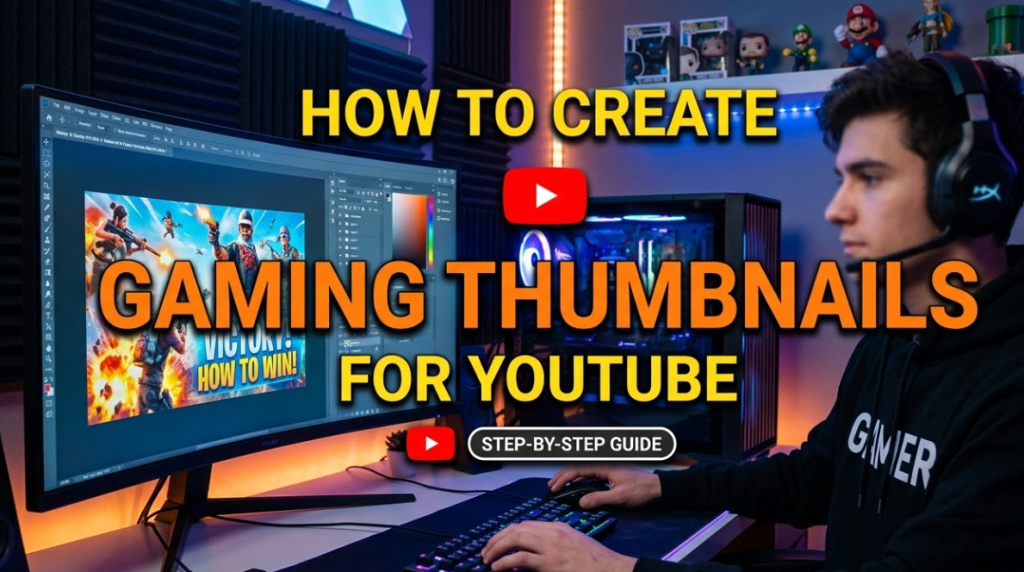
If you want more people to click on your YouTube videos, you need to master gaming thumbnails for YouTube. A thumbnail is the small image that shows up before someone clicks your video. Think of it like the cover of a book. If it looks boring, people scroll right past it.
Gaming is one of the most competitive spaces on YouTube. Millions of videos are uploaded every single day. Your thumbnail is your first impression — and often your only chance to grab someone's attention.
Studies show that 90% of top-performing YouTube videos use custom thumbnails. That number alone tells you everything. If you're still using auto-generated thumbnails, you're leaving a huge amount of views on the table.
Great gaming thumbnails for YouTube do three things at once: they grab attention, tell the viewer what the video is about, and make the person want to click. This guide will show you exactly how to create thumbnails that do all three — even if you've never designed anything before.
Why Most Gaming Thumbnails Fail (And How to Avoid Those Mistakes)
Before we get into the how-to, let's talk about what goes wrong. Most beginner YouTubers make the same mistakes over and over again. Knowing these mistakes in advance will save you a lot of time and frustration.
Too Much Going On
New creators often try to fit everything into one tiny image. Text, characters, logos, effects — all crammed into a 1280×720 box. The result? A messy image that confuses the viewer.
Keep things simple. One focal point. One clear message.
Text That's Too Small to Read
Many thumbnails have text that looks fine on a computer screen but becomes unreadable on a phone. Since most people watch YouTube on mobile, your text needs to be big, bold, and easy to read at a glance.
A good rule: if you have to squint to read it, the text is too small.
No Contrast or Color Pop
A thumbnail that blends into YouTube's white background gets ignored. You need strong contrast between your background and your main subject. Bright, bold colors work best in the gaming niche.
Faces and Emotions Are Missing
Thumbnails with human faces get more clicks. It's a proven psychological fact — people are naturally drawn to other people's faces, especially when those faces show strong emotions like shock, excitement, or fear.
The Anatomy of a Perfect Gaming Thumbnail
Let's break down what the best gaming thumbnails for YouTube have in common. Think of it like a recipe — every ingredient plays a role.
1. A Strong Focal Point
Every great thumbnail has one main subject. This could be your face, a character from the game, an item, or a scene. Everything else in the thumbnail should support this focal point, not compete with it.
2. Bold, Readable Text
Most winning thumbnails use 3–5 words max. The font should be thick, bold, and high-contrast. Drop shadows and outlines make text stand out against busy backgrounds.
3. Bright, Contrasting Colors
Gaming thumbnails that pop tend to use bold contrasting color combinations. Think red and yellow, blue and orange, green and black. These combinations catch the eye and stand out in a crowded feed.
4. Emotional Expression
If you're in your thumbnails, show real emotion. Shock, excitement, joy, disbelief — these expressions increase click-through rate significantly. Flat or neutral faces don't connect with viewers.
5. Game-Specific Branding
The best gaming channels have a consistent thumbnail style that viewers recognize immediately. Use the same fonts, colors, and layout every time so your channel builds a visual identity.
Tools You Can Use to Make Gaming Thumbnails for YouTube
You don't need expensive software to create professional-looking gaming thumbnails. Here are the best tools available today, from free to paid.
| Tool | Price | Skill Level | Best For |
|---|---|---|---|
| Canvix | Free/Paid | Beginner | Quick gaming designs |
| Canva | Free/Paid | Beginner | Drag-and-drop layouts |
| Adobe Photoshop | Paid | Advanced | Full creative control |
| GIMP | Free | Intermediate | Open-source editing |
| Fotor | Free/Paid | Beginner | Ready-made templates |
| PicsArt | Free/Paid | Beginner | Mobile editing |
For most beginner and intermediate creators, Canvix is one of the top choices. It's built with creators in mind and offers gaming-specific design tools that make it easy to create eye-catching thumbnails fast.
If you want to go deeper and learn from YouTube's own design principles, check out the YouTube Creator Academy — it has free lessons on thumbnail strategy directly from YouTube.
Step-by-Step: How to Create Gaming Thumbnails for YouTube
Now let's get into the actual process. Follow these steps to create your first professional gaming thumbnail.
Step 1 — Set Up the Right Canvas Size
YouTube thumbnails should be 1280 × 720 pixels with a minimum width of 640 pixels. Always use this size. Thumbnails that are smaller or the wrong ratio will look pixelated or cropped.
Open your chosen design tool and create a new canvas at 1280 × 720 px. Make sure you're working in RGB color mode, and save your file as a JPG or PNG under 2MB.
Step 2 — Choose Your Background
Your background sets the mood for the entire thumbnail. You have several options:
- Solid color — clean and bold, great for minimalist styles
- Game screenshot — use a dramatic or action-packed scene from the game
- Gradient — a two-color fade that adds depth without being distracting
- Custom artwork — fan art or illustrated backgrounds for unique appeal
Whatever background you choose, make sure your main subject (text or face) stands out clearly against it.
Step 3 — Add Your Main Subject
This is where you place the hero of your thumbnail. If you're a face-cam creator, cut out your photo from the background and place yourself on the thumbnail. If you don't show your face, use a game character, weapon, item, or dramatic scene.
Tools like Canvix let you remove backgrounds with a single click, making this step much faster.
Position your main subject slightly to the right or left, not dead center. This creates visual balance and leaves room for your text.
Step 4 — Write Punchy, Click-Worthy Text
Now it's time for your title text. This should either match or complement your video title. Here are a few formats that work really well:
- Question format: "Is This the BEST Weapon in the Game?"
- Challenge format: "I Survived 100 Days in Hardcore Mode"
- Shock format: "I Can't Believe This Happened"
- Number format: "Top 10 Hidden Secrets You Missed"
Keep the text short — 3 to 6 words is the sweet spot. Use a bold font, add an outline or drop shadow, and place it where it doesn't block your main subject.
Step 5 — Apply Your Color Scheme
Now layer in your chosen colors. Stick to 2–3 colors per thumbnail. Too many colors look chaotic. A good trick is to pick one dominant color from your background and then use a contrasting accent color for your text.
Popular color combos for gaming thumbnails:
- Red + Yellow (energetic, high action)
- Blue + Orange (striking contrast)
- Purple + Green (mysterious, fantasy/RPG feel)
- Black + White + one bold accent (clean and modern)
Step 6 — Add Effects and Finishing Touches
Now polish the thumbnail with small effects:
- Glow effects around your character or text
- Motion blur to suggest speed and action
- Arrows or circles to direct attention to key parts
- Stickers or icons like crowns, explosions, or checkmarks to reinforce the emotion
Less is more here. Add only what helps the viewer understand the thumbnail faster.
Step 7 — Preview and Test Your Thumbnail
Before uploading, always do a preview test. Shrink your thumbnail down to the size it appears on a phone screen (roughly 120 × 68 pixels). Can you still read the text? Can you still see the main subject?
If something is hard to see at small size, go back and adjust. Most successful creators test their thumbnails at small sizes before finalizing.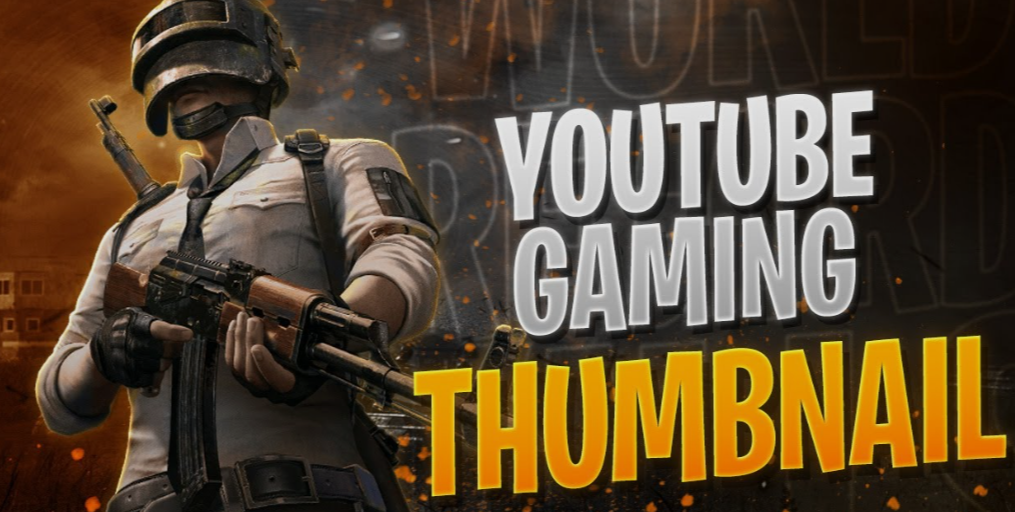
Gaming Thumbnail Design Rules Every Creator Should Follow
Even the best tools won't save a bad design. Here are the core rules to live by when making gaming thumbnails for YouTube.
Rule 1 — One Emotion, One Message
Your thumbnail should communicate one clear idea in under two seconds. If someone needs time to understand what the thumbnail is saying, it's too complicated.
Rule 2 — Consistency Builds Recognition
Once you find a style that works, stick to it. Your audience should be able to recognize your thumbnails even before they read the channel name. This is what the biggest gaming YouTubers do — their thumbnails are instantly recognizable.
Rule 3 — Contrast Is King
Light text needs a dark background. Dark text needs a light background. Never put light text on a light background or dark text on a dark background. Contrast is the single most important design principle in thumbnail creation.
Rule 4 — Avoid Clickbait That Lies
A thumbnail that promises something your video doesn't deliver will hurt you in the long run. YouTube's algorithm tracks audience retention. If people click and immediately leave, your video gets buried. Be exciting — but be honest.
Rule 5 — A/B Test Your Thumbnails
YouTube allows you to change a thumbnail after uploading. If a video isn't getting clicks, try a different thumbnail. Many creators test 2–3 thumbnail designs per video to find the version that performs best.
Thumbnail Styles That Work Best by Gaming Genre
Different gaming genres benefit from different thumbnail styles. Here's a quick breakdown:
| Genre | Recommended Style | Color Palette | Emotion to Show |
|---|---|---|---|
| FPS / Shooter | Action shot, bullet effects | Red, Black, Orange | Intensity, Focus |
| RPG / Fantasy | Character art, epic scenes | Purple, Gold, Blue | Awe, Adventure |
| Horror | Dark atmosphere, jump scare | Black, Red, Green | Fear, Shock |
| Minecraft / Sandbox | Colorful builds, achievements | Green, Yellow, Brown | Excitement, Pride |
| Sports / Racing | Speed blur, winner pose | Blue, White, Yellow | Energy, Victory |
| Strategy | Map overview, chess-style | Gray, Blue, Gold | Confidence, Intelligence |
Match your style to your genre and your audience will instantly know what kind of content to expect.
How to Make Your Face Look Great in Gaming Thumbnails
If you use a face cam, your expression is one of the most powerful tools you have. Here's how to nail it every time.
Take Dedicated Thumbnail Photos
Don't screenshot your face from your actual video footage. Instead, set up a separate session where you take photos specifically for thumbnails. Use good lighting — a ring light works great. Wear a bright or contrasting shirt. Then make several different expressions and pick the best one.
Remove the Background Cleanly
A messy or busy background around your face distracts from your thumbnail. Use a tool like Canvix or remove.bg to cut out your background cleanly. Then place your face on top of your game screenshot background.
Exaggerate Your Expression
On screen, normal expressions look flat. You need to push your expression further than feels natural. Open your mouth wider. Raise your eyebrows more. Lean into the emotion. Gaming audiences respond to energy and personality.
Common Gaming Thumbnail Mistakes to Stop Making Right Now
Let's revisit the mistakes — but this time with more specific fixes you can apply immediately.
Mistake: Using Auto-Generated Thumbnails
YouTube's auto-thumbnails are almost always mid-video frames with weird expressions or dark lighting. Never rely on these. Always upload a custom thumbnail.
Mistake: Copying Other Creator Styles Too Closely
It's fine to get inspired. It's not fine to copy. Create your own identity. The goal is to be recognizable, not imitative.
Mistake: Ignoring Mobile Viewers
More than 70% of YouTube watch time comes from mobile devices. Design for the phone screen first, and make sure your thumbnail reads well at a small size.
Mistake: Inconsistent Thumbnail Styles
Switching styles every video makes your channel look messy and unprofessional. Pick a style and evolve it slowly over time.
Quick Thumbnail Checklist Before You Upload
Use this quick checklist every time before uploading a thumbnail:
- ✅ Canvas size is 1280 × 720 px
- ✅ File is under 2MB (JPG or PNG)
- ✅ Text is readable at thumbnail size
- ✅ Strong contrast between text and background
- ✅ One clear focal point
- ✅ Emotion is visible (if using a face)
- ✅ Colors match the genre and mood
- ✅ No copyright-protected images used
- ✅ Consistent with your brand style
- ✅ Tested at mobile preview size
FAQs About Gaming Thumbnails for YouTube
Q1: What size should gaming thumbnails for YouTube be? The ideal size is 1280 × 720 pixels with a 16:9 aspect ratio. Keep the file size under 2MB and save as JPG or PNG.
Q2: Do thumbnails affect how many views a video gets? Yes, absolutely. YouTube itself confirms that thumbnails are one of the most important factors in video click-through rate (CTR). A better thumbnail can increase views by 30–300% without changing anything else.
Q3: Can I make gaming thumbnails for free? Yes. Tools like Canvix, Canva, GIMP, and Fotor all offer free plans. You don't need to spend money to create high-quality thumbnails.
Q4: How often should I change my thumbnail style? Avoid changing your style too frequently. Once every 3–6 months for minor updates is healthy. Major redesigns should only happen when you're rebranding your entire channel.
Q5: Should I always show my face in thumbnails? No, but it helps. Thumbnails with faces tend to get more clicks on average. However, many faceless gaming channels do extremely well with character art, game scenes, or graphic designs. It depends on your channel identity.
Q6: How many words should I put in a gaming thumbnail? Ideally, 3 to 6 words. Fewer is almost always better. The goal is impact, not explanation.
Q7: What fonts work best for gaming thumbnails? Bold, impact-style fonts work best. Popular choices include Impact, Anton, Bebas Neue, and Montserrat Bold. Always add an outline or drop shadow so the text is visible on any background.
Q8: What makes a thumbnail look professional? Clean cutouts, strong contrast, consistent branding, bold text, and high-quality images. Professionalism also comes from restraint — not adding too many elements.
Wrapping Up — Start Creating Gaming Thumbnails That Actually Get Clicks
Creating great gaming thumbnails for YouTube is a skill, and like all skills, it gets better with practice. The good news is you don't need to be a professional designer to make thumbnails that work. You just need the right tools, the right principles, and a willingness to test and improve.
Start simple. Pick one tool like Canvix, follow the step-by-step process in this guide, and create your first custom thumbnail today. Look at what the top creators in your genre are doing. Study their thumbnails and ask yourself — what makes me want to click?
Then bring that same energy to your own work.
Every view your channel will ever get starts with someone deciding to click. Make that decision easy for them. Your thumbnail is your handshake with your future viewers — make it a strong one.
