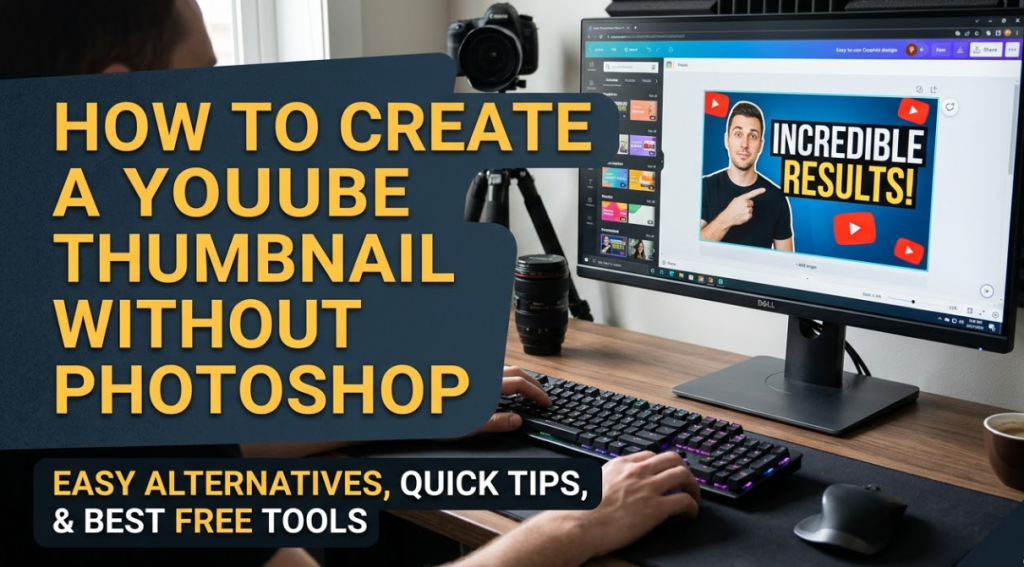
If you've ever uploaded a YouTube video, you already know that your thumbnail is everything. It's the first thing people see. It's what makes them click — or scroll right past you.
Creating a YouTube thumbnail without Photoshop is not just possible — it's actually easier, faster, and more beginner-friendly. Photoshop is powerful, but it costs money, takes time to learn, and can feel overwhelming for new creators.
The good news? There are incredible free and low-cost tools that let you build eye-catching, professional thumbnails in minutes. Whether you're a student, a small business owner, or someone just starting their YouTube journey, this guide will walk you through everything you need to know.
By the end, you'll know exactly which tools to use, what makes a thumbnail work, and how to design one from scratch — no Photoshop required.
Why Your YouTube Thumbnail Matters More Than You Think
Before jumping into tools, let's talk about why thumbnails are so important.
YouTube is one of the most competitive platforms on the planet. Millions of videos get uploaded every single day. A strong thumbnail is often the difference between 100 views and 100,000 views.
The Psychology Behind a Click
Humans are visual creatures. We make decisions in fractions of a second based on what we see. A thumbnail works like a book cover — it tells a story before anyone even watches a single second of your video.
Research shows that 90% of the best-performing YouTube videos use custom thumbnails. That means auto-generated screenshots almost never cut it.
A great thumbnail does three things:
- Grabs attention instantly
- Tells viewers what the video is about
- Makes them feel curious or excited
What Happens When a Thumbnail Is Weak
A weak thumbnail means low click-through rate (CTR). Low CTR tells YouTube's algorithm that people aren't interested in your video. As a result, YouTube stops recommending it — and your video gets buried.
So getting your thumbnail right isn't just about looks. It directly impacts how YouTube promotes your content.
The Right Size and Format for a YouTube Thumbnail
Before you design anything, you need to know the technical requirements.
| Spec | Requirement |
|---|---|
| Recommended Size | 1280 x 720 pixels |
| Minimum Width | 640 pixels |
| Aspect Ratio | 16:9 |
| Max File Size | 2 MB |
| Accepted Formats | JPG, PNG, GIF, BMP |
Always design at 1280 x 720 pixels. This ensures your thumbnail looks sharp on all devices — phones, tablets, laptops, and TVs.
Best Free Tools to Create a YouTube Thumbnail Without Photoshop
Now let's get into the heart of it. Here are the best tools you can use right now to design a YouTube thumbnail without Photoshop.
1. Canva — The Fan Favorite for Beginners
Canva is probably the most popular thumbnail tool for YouTubers. It's free, web-based, and has thousands of templates designed specifically for YouTube.
What makes Canva great:
- Drag-and-drop interface — no design experience needed
- Hundreds of free YouTube thumbnail templates
- Free stock photos, icons, and fonts
- Easy text editing and layer controls
- Works on desktop and mobile
To get started, go to Canva, search "YouTube Thumbnail," and pick a template. From there, swap out the text, change the background, add your photo, and you're done.
Canva's free plan is generous. The Pro plan unlocks premium templates and the background remover tool, which is super helpful for placing yourself on a custom background.
2. Canvix — Built for Content Creators
If you want a tool that's specifically built with YouTube creators in mind, Canvix is worth checking out. It offers an intuitive design experience with templates, branding tools, and creative assets tailored for thumbnails, social media visuals, and content creation workflows.
It's a solid alternative if you want something more focused than a general-purpose design platform.
3. Adobe Express — Professional Results for Free
Adobe Express (formerly Adobe Spark) is another excellent option. It's made by the same company that makes Photoshop, but it's way easier to use.
Key features:
- Clean, modern templates
- One-click background removal (with free account)
- Access to Adobe Fonts and stock images
- Direct download in high resolution
If you want that polished, professional look without the Photoshop learning curve, Adobe Express is a strong pick.
4. Snappa — Fast and Clean Designs
Snappa is another browser-based design tool built for social media graphics and thumbnails. It has a smaller template library than Canva, but the designs are clean and modern.
The free plan lets you download 3 graphics per month, which works well if you're just starting out.
5. Fotor — Great for Photo Editing
Fotor leans more toward photo editing than design. This makes it perfect if your thumbnail relies heavily on a real photo — like a reaction shot or a before-and-after image.
You can enhance colors, remove blemishes, adjust brightness, and add text overlays — all without touching Photoshop.
6. PicMonkey — Perfect for Adding Faces
PicMonkey is especially popular among creators who put their own face in their thumbnails. It has strong portrait editing tools — smoothing skin, brightening eyes, and adjusting expressions.
Thumbnails with human faces tend to perform better because they trigger emotional recognition. PicMonkey makes it easy to enhance your expression and look your best.
Tool Comparison Table
| Tool | Free Plan | Background Remover | Templates | Best For |
|---|---|---|---|---|
| Canva | ✅ Yes | ✅ (Pro) | ✅ Hundreds | Beginners, all-around |
| Canvix | ✅ Yes | ✅ | ✅ Yes | Content creators |
| Adobe Express | ✅ Yes | ✅ Free | ✅ Dozens | Professional polish |
| Snappa | ✅ Limited | ❌ | ✅ Yes | Quick, clean designs |
| Fotor | ✅ Yes | ✅ (Premium) | ✅ Yes | Photo-heavy thumbnails |
| PicMonkey | ❌ Trial | ✅ Yes | ✅ Yes | Face/portrait editing |
Step-by-Step: How to Make a YouTube Thumbnail Without Photoshop Using Canva
Let's walk through the process using Canva, since it's free and beginner-friendly. These steps work similarly in most other tools too.
Step 1 — Set Up the Right Canvas Size
Open Canva and click "Create a design." In the search bar, type "YouTube Thumbnail." Canva will automatically set the canvas to 1280 x 720 pixels — the perfect size.
Alternatively, click "Custom size" and enter the dimensions manually.
Step 2 — Pick a Template or Start Blank
Browse through Canva's free YouTube thumbnail templates. Look for one that fits the vibe of your video — energetic, educational, funny, dramatic, etc.
Don't worry if it's not a perfect match. You'll customize everything in the next steps.
If you want full creative control, start with a blank canvas and build from scratch.
Step 3 — Add Your Background
The background sets the mood of your thumbnail. You have a few options:
- Solid color — clean, bold, and easy to read
- Gradient — adds depth and visual interest
- Custom photo — great for travel, food, or lifestyle channels
- Blurred photo — keeps focus on the text or subject in the foreground
To add a background photo, click "Photos" in the left panel and search for something relevant. Drag it onto the canvas and resize as needed.
Step 4 — Add Your Own Photo or Face
This step is optional but highly recommended. Thumbnails with a person's face — especially one showing a strong emotion — get significantly more clicks.
Click "Uploads" in the left panel and upload a photo of yourself. Place it on the canvas, resize it, and position it where it looks natural.
Pro tip: Use a photo where you're showing a clear expression — surprise, excitement, curiosity, or laughter. Avoid neutral or flat expressions.
If your photo has a messy background, use Canva Pro's background remover or a free tool like remove.bg to cut it out cleanly.
Step 5 — Write Bold, Readable Text
Your text should be short, punchy, and easy to read at a small size. Remember, thumbnails are tiny on mobile screens.
Good thumbnail text is:
- 5 words or fewer (ideally 2–4)
- Large and bold
- High contrast — light text on dark background, or dark text on light background
- Emotionally charged — use power words like "SECRET," "NEVER," "FINALLY," "EPIC," "SHOCKING"
Avoid using full sentences. Your title and thumbnail text should complement each other, not repeat the same thing.
Step 6 — Add Visual Elements and Icons
Arrows, circles, borders, and icons help direct the viewer's eye to what matters most. Use them sparingly — too many elements make a thumbnail look cluttered.
A red arrow pointing to a face or a circled element creates curiosity and draws attention fast.
Step 7 — Check Contrast and Readability
Zoom out and look at your thumbnail at a small size. Ask yourself:
- Can I read the text clearly?
- Does anything blend into the background?
- Is there too much going on?
Simplicity wins. If in doubt, remove elements rather than add more.
Step 8 — Download and Upload to YouTube
Once you're happy with your design, click "Download" in the top right corner. Choose PNG for best quality, or JPG if you need a smaller file size.
Then go to YouTube Studio, open your video, scroll down to the thumbnail section, and upload your new image.
Design Principles That Separate Good Thumbnails From Great Ones
Knowing how to use the tools is only half the battle. The other half is knowing what makes a thumbnail actually work.
Use the Rule of Thirds
Divide your thumbnail into a 3x3 grid (most design tools have a grid overlay). Place your main subject — whether it's your face, a product, or a key visual — along one of the grid lines or at an intersection point.
This creates visual balance and makes the design feel more natural to the eye.
Color Psychology in Thumbnails
Colors trigger emotions. Here's a quick breakdown:
| Color | Emotion | Best Used For |
|---|---|---|
| Red | Urgency, excitement | News, drama, action |
| Yellow | Energy, happiness | Fun, lifestyle, travel |
| Blue | Trust, calm | Tech, finance, education |
| Green | Growth, nature | Health, money, outdoors |
| Orange | Warmth, enthusiasm | Food, creativity |
| Black | Power, mystery | Luxury, serious topics |
Pick 2–3 colors maximum for a clean look. Use one dominant color, one supporting color, and one accent.
Font Choices That Actually Work
Not all fonts are created equal for thumbnails. You want fonts that are bold, clean, and easy to read at a glance.
Best font styles for thumbnails:
- Bold sans-serif fonts — Impact, Bebas Neue, Montserrat Bold
- Condensed fonts — fit more text in less space
- Script fonts — use sparingly, only for a single word or accent
Avoid thin fonts. They disappear on small screens.
Common Thumbnail Mistakes to Avoid
Even experienced creators make these mistakes. Knowing them upfront will save you a lot of headaches.
Mistake #1 — Too Much Text
If you're writing a full sentence on your thumbnail, you've already lost. Viewers don't have time to read. Keep it short. Keep it bold.
Mistake #2 — Low Contrast
Dark text on a dark background, or light text on a light background — both are invisible at small sizes. Always use high contrast combinations.
Mistake #3 — Inconsistent Branding
Your thumbnails should look like they belong to the same channel. Use the same fonts, colors, and general layout across all your videos. This builds brand recognition and makes your channel look professional.
Mistake #4 — Misleading Thumbnails
Clickbait that doesn't deliver is a fast way to destroy your channel's trust. Your thumbnail should be exciting but honest. If viewers click and feel tricked, they'll leave immediately — and that tanks your watch time and algorithm ranking.
Mistake #5 — Ignoring Mobile Viewers
More than 70% of YouTube watch time comes from mobile devices. Always preview your thumbnail at a small size before publishing. If it looks great on a big monitor but terrible on a phone screen, it needs work.
Pro Tips to Level Up Your Thumbnails Fast
Here are a few advanced tricks that top YouTubers use to make their thumbnails stand out.
Add a Colored Outline Around Text
A simple outline or shadow around your text makes it pop off any background. In Canva, select your text, go to "Effects," and add a shadow or glow.
Use Split-Screen Comparisons
Before/after or two-option thumbnails perform incredibly well. They create instant curiosity — the viewer wants to know which side "wins."
Put Yourself on a Transparent Background
Cut yourself out of your photo and place yourself in front of a bold, flat background. This looks clean, professional, and very clickable.
Look Directly at the Camera
In your thumbnail photo, make eye contact with the viewer. Direct eye contact builds connection and makes the thumbnail feel personal.
A/B Test Your Thumbnails
YouTube allows you to see your click-through rate (CTR) in YouTube Studio under Analytics > Reach. If your CTR is below 4–5%, try changing the thumbnail and see if performance improves.
Some creators also use YouTube's built-in "Test & Compare" feature (available on some accounts) to run two thumbnails head-to-head.
How to Remove Backgrounds for Free (Without Photoshop)
One of the most common Photoshop tasks is removing backgrounds from photos. Here's how to do it for free:
Option 1 — Remove.bg
Go to remove.bg, upload your photo, and the background is removed automatically in seconds. Download the result and import it into Canva or any other tool.
Option 2 — Canva Pro Background Remover
If you have Canva Pro, select your image and click "Edit Image" → "BG Remover." It works surprisingly well for photos where the subject is clearly defined.
Option 3 — Adobe Express
Adobe Express also offers a free background removal tool. Upload your photo, use the "Remove Background" button, and download the transparent PNG.
FAQs: YouTube Thumbnail Without Photoshop
Q1. Can I really make a professional YouTube thumbnail without Photoshop? Absolutely. Tools like Canva, Adobe Express, and Canvix offer everything you need to design polished, high-converting thumbnails — all without Photoshop.
Q2. What is the best free tool for making YouTube thumbnails? Canva is the most popular choice for beginners because it's free, easy to use, and has hundreds of templates. Adobe Express is a great runner-up for a more polished look.
Q3. What size should a YouTube thumbnail be? The recommended size is 1280 x 720 pixels with a 16:9 aspect ratio. Keep the file size under 2 MB.
Q4. Do thumbnails really affect YouTube views? Yes, significantly. Your thumbnail is one of the biggest factors in your click-through rate (CTR). A better thumbnail almost always leads to more clicks and more views.
Q5. How do I add text to a YouTube thumbnail without Photoshop? In tools like Canva or Adobe Express, just click the "Text" option, type your words, and customize the font, size, and color. It takes less than a minute.
Q6. Should I put my face on my YouTube thumbnail? In most cases, yes. Thumbnails with faces — especially ones showing strong emotions — tend to get more clicks because they create a human connection.
Q7. How many colors should I use in a thumbnail? Stick to 2–3 colors maximum. Use one dominant color, one supporting color, and one accent. Too many colors look chaotic and reduce readability.
Q8. Is it okay to use text in every thumbnail? Most top YouTubers use text in at least 80% of their thumbnails. Text adds context and reinforces the video's message. Just keep it short — under 5 words is ideal.
Q9. What font is best for YouTube thumbnails? Bold, sans-serif fonts like Bebas Neue, Impact, or Montserrat Bold are popular choices. They're easy to read at small sizes and have strong visual impact.
Q10. How often should I update my thumbnails? If a video isn't performing well, updating the thumbnail is one of the first things to try. There's no limit to how many times you can change a thumbnail on YouTube.
Conclusion: Start Designing Your Thumbnails Today
Creating a YouTube thumbnail without Photoshop is not only possible — it's actually the smarter choice for most creators. The tools available today are powerful, easy to use, and mostly free.
Here's a quick recap of what you've learned:
- Your thumbnail is one of the most important factors in your video's success
- The ideal size is 1280 x 720 pixels
- Tools like Canva, Adobe Express, Canvix, Snappa, and Fotor make it easy to design without Photoshop
- Great thumbnails use bold text, strong contrast, emotional faces, and clean layouts
- Common mistakes include too much text, low contrast, and inconsistent branding
- You can remove backgrounds for free using remove.bg or Canva Pro
The best time to improve your thumbnails is right now. Pick one tool, open a template, and start experimenting. You don't need to be a designer. You just need the right tools — and now you have them.
