If you've ever scrolled through YouTube or clicked on a blog post, you've probably noticed something. The best thumbnails always have bold arrows and circles pointing at something important. Learning how to add arrows and circles to thumbnails is one of the smartest moves you can make as a content creator. These simple shapes guide the viewer's eye, create curiosity, and boost your click-through rate dramatically.
This guide will walk you through everything — from the tools you need to the exact steps you should follow. Whether you're a beginner or someone who's been making thumbnails for a while, you'll find something useful here.
Why Arrows and Circles Make Your Thumbnails Pop
Before jumping into the "how," let's talk about the "why."
Your thumbnail has about 1.5 seconds to grab someone's attention. That's it. In that tiny window, your viewer decides whether to click or scroll past.
Arrows and circles help because they:
- Direct attention to the most important part of the image
- Create a sense of urgency or excitement
- Make faces and expressions stand out more clearly
- Add visual contrast that breaks up a flat image
- Signal emotion — a red circle screams "look here!"
Thumbnails that use directional cues like arrows consistently outperform plain images. It's not a secret. It's visual psychology.
Tools You Can Use to Add Arrows and Circles to Thumbnails
You don't need expensive software. There are plenty of tools — free and paid — that make this process easy.
Free Tools for Beginners
| Tool | Platform | Best For |
|---|---|---|
| Canva | Web / Mobile | Beginners, quick edits |
| Adobe Express | Web / Mobile | Stylish, branded thumbnails |
| PicsArt | Mobile | On-the-go editing |
| GIMP | Desktop | Advanced free editing |
| Snappa | Web | Social media creators |
Paid Tools for Pros
| Tool | Platform | Best For |
|---|---|---|
| Adobe Photoshop | Desktop | Full professional control |
| Canvix | Web | Fast, creator-focused design |
| Affinity Photo | Desktop | Budget-friendly Photoshop alternative |
| Figma | Web | Design-heavy creators |
Each tool has its strengths. If you're just starting out, Canva or Canvix are your best friends. They're fast, beginner-friendly, and powerful enough for professional-looking results.
How to Add Arrows and Circles to Thumbnails in Canva (Step-by-Step)
Canva is one of the most popular tools for thumbnail design. Here's exactly how to do it.
Step 1 — Set Up Your Thumbnail Canvas
- Go to Canva.com and sign in or create a free account.
- Click "Create a design" in the top right corner.
- In the search bar, type "YouTube Thumbnail" and select it.
- This gives you a canvas that's already set to 1280 x 720 pixels — the perfect YouTube thumbnail size.
Step 2 — Upload Your Base Image
- Click the "Uploads" tab on the left sidebar.
- Click "Upload files" and select your image.
- Once uploaded, drag it onto the canvas and resize it to fill the entire background.
Step 3 — Add an Arrow Shape
- Click "Elements" on the left sidebar.
- In the search bar, type "arrow".
- Browse through the arrow options. You'll find flat arrows, bold arrows, 3D arrows, and more.
- Click on the arrow you like and it will appear on your canvas.
- Drag it to where you want it — usually pointing at a face, text, or an important object.
- Resize it by dragging the corners.
- Change the color by clicking the arrow and then clicking the color box in the top toolbar. Red, yellow, and white arrows tend to work best on thumbnails.
Step 4 — Add a Circle
- In the "Elements" search bar, type "circle" or "oval".
- Select a circle outline (not a filled circle) for that classic "highlight" look.
- Drag the circle over the element you want to highlight — a face, a product, a number.
- Resize and reposition it as needed.
- Change the color and adjust the border thickness using the top toolbar.
Step 5 — Final Touches
- Layer your arrows and circles on top of each other if needed.
- Use bold, contrasting colors like red, orange, or yellow against dark backgrounds.
- Keep the design clean — don't add too many shapes or the thumbnail will look cluttered.
- Download your thumbnail by clicking "Share" → "Download" → PNG format.
How to Add Arrows and Circles to Thumbnails in Photoshop
For those who want more control, Photoshop is the gold standard.
Setting Up Your File
- Open Photoshop and go to File → New.
- Set the dimensions to 1280 x 720 pixels, resolution at 72 DPI, and color mode to RGB.
- Place your thumbnail image by going to File → Place Embedded and selecting your image.
Drawing an Arrow in Photoshop
- Select the Line Tool from the left toolbar (it may be hidden under the Shape Tool — right-click to find it).
- In the top toolbar, look for the "Arrowheads" option. Check the box for "End" to put an arrowhead at the end of your line.
- Set the stroke weight to something bold — at least 8-12px.
- Draw your arrow by clicking and dragging on the canvas.
- Double-click the shape layer thumbnail to change its color.
Drawing a Circle in Photoshop
- Select the Ellipse Tool from the toolbar.
- In the top toolbar, switch the mode from "Fill" to "Stroke" and set Fill to none.
- Set the stroke color to red, yellow, or white.
- Set the stroke width to around 6-10px.
- Hold Shift while drawing to make a perfect circle.
- Position it over the element you want to highlight.
Pro Tips for Photoshop Thumbnails
- Add a drop shadow to your arrows and circles so they pop off the background.
- Use layer styles to add glow effects for a more dynamic look.
- Group your shape layers so they're easy to move together.
- Save a PSD file so you can reuse the template for future thumbnails.
How to Add Arrows and Circles to Thumbnails on Mobile
Not everyone works from a desktop. Many creators edit thumbnails straight from their phones.
Using PicsArt on Mobile
- Download PicsArt from the App Store or Google Play.
- Open the app and tap the "+" button to start a new project.
- Upload your thumbnail image.
- Tap "Draw" from the bottom toolbar.
- Select the arrow brush or use the shape tool to draw circles and arrows.
- Adjust the color, size, and opacity.
- Save and export your finished thumbnail.
Using Canva Mobile
The Canva mobile app works almost exactly like the desktop version. All the same steps apply. Just tap "Elements," search for arrows or circles, and drag them onto your canvas.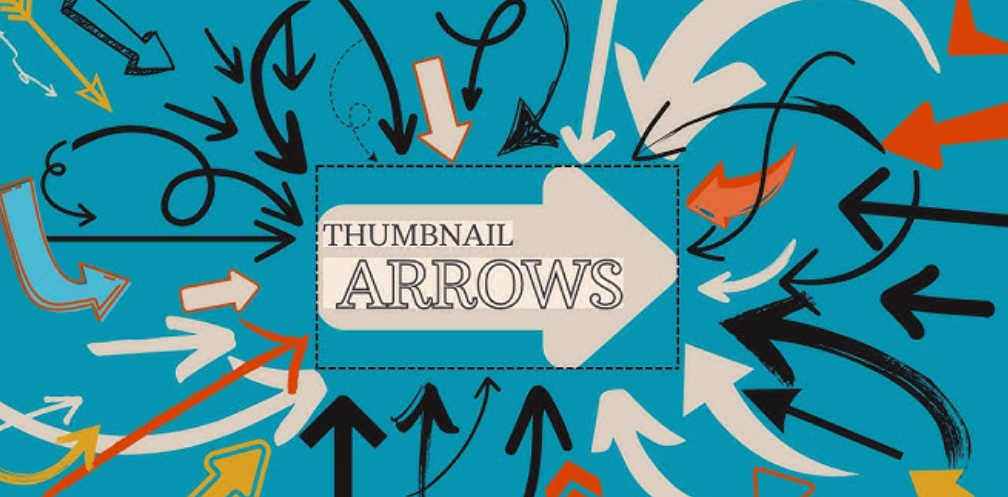
The Best Arrow and Circle Styles for Thumbnails
Not all arrows look the same. The style you choose matters.
Arrow Styles Breakdown
| Arrow Style | When to Use |
|---|---|
| Bold Flat Arrow | Pointing at a face or text — very common |
| Curved Arrow | Adding a dynamic, energetic feel |
| 3D Arrow | High-energy thumbnails, gaming, reactions |
| Hand-drawn Arrow | Casual, relatable, personal vlogs |
| Neon Arrow | Tech, gaming, or futuristic topics |
Circle Styles Breakdown
| Circle Style | When to Use |
|---|---|
| Thick Outline Circle | Highlighting a face or expression |
| Dashed Circle | More subtle, used in informational content |
| Filled Circle with Opacity | Drawing attention without hiding content |
| Scribbled Circle | Hand-drawn look for lifestyle or vlog content |
Matching your arrow and circle style to your content's vibe is key. A gaming channel can go bold and neon. A cooking channel might prefer clean, simple shapes.
Color Psychology — Picking the Right Colors for Arrows and Circles
Colors aren't just decoration. They trigger emotions.
Here's a quick breakdown of the best colors for thumbnail arrows and circles:
| Color | Emotion It Triggers | Best Used For |
|---|---|---|
| Red | Urgency, excitement, danger | Reaction videos, shocking news |
| Yellow | Energy, happiness, attention | Lifestyle, vlogs, tutorials |
| White | Clean, clear, professional | Educational or informational content |
| Orange | Fun, warmth, enthusiasm | Entertainment, food, travel |
| Green | Positivity, go, growth | Finance, health, tutorials |
| Blue | Trust, calm, reliability | Tech, business, how-to guides |
Most top YouTubers use red or yellow for their highlight shapes. These colors have the highest contrast against dark or complex backgrounds, which is why they're so effective.
Common Mistakes to Avoid When Adding Arrows and Circles
Even experienced creators make these mistakes. Watch out for them.
Using Too Many Shapes
More isn't better. If your thumbnail has five arrows pointing in different directions and three circles overlapping each other, it becomes chaotic. Use one or two shapes max per thumbnail.
Making Shapes Too Small
If your arrow or circle is too tiny, it loses its purpose. Make your shapes bold and visible, even on a small mobile screen where most viewers will see your thumbnail.
Ignoring Contrast
A white arrow on a light background is invisible. Always make sure your shapes contrast strongly against the background. Use dark outlines or shadows if needed.
Placing Shapes in the Wrong Spot
Your arrow should point at something meaningful — a face showing a strong emotion, a key product, or an important piece of text. Randomly placed arrows confuse viewers instead of guiding them.
Using Low-Quality Shapes
Blurry or pixelated shapes look unprofessional. Always use vector-based shapes (like those in Canva or Photoshop) that stay crisp at any size.
How Top YouTubers Use Arrows and Circles in Their Thumbnails
Let's look at what the pros actually do.
MrBeast almost always points an arrow toward his face or toward a shocking number. His thumbnails are designed to create immediate curiosity.
Mark Rober uses bold circles to highlight small, easy-to-miss details in his science experiments. It makes viewers feel like they're getting insider knowledge.
Reaction channels often draw a big red circle around a dramatic facial expression. This is intentional — it tells the viewer, "this moment is worth your time."
The pattern is clear: top creators use arrows and circles to tell a visual story before the viewer even clicks play.
Quick Reference — How to Add Arrows and Circles to Thumbnails
Here's a fast cheat sheet for the entire process:
| Step | Action |
|---|---|
| 1 | Choose your design tool (Canva, Photoshop, etc.) |
| 2 | Set canvas to 1280 x 720 pixels |
| 3 | Upload and place your base image |
| 4 | Add an arrow from the shapes/elements menu |
| 5 | Add a circle outline over the key element |
| 6 | Choose high-contrast colors (red, yellow, white) |
| 7 | Resize and reposition for balance |
| 8 | Export as PNG for best quality |
FAQs — How to Add Arrows and Circles to Thumbnails
Q1: What is the best free tool to add arrows and circles to thumbnails? Canva is the best free option for most creators. It's easy to use, has tons of arrow and circle shapes, and works right in your browser without any downloads.
Q2: What size should arrows and circles be on a thumbnail? Your shapes should be large enough to see clearly on a small screen. As a rule of thumb, circles should cover at least 20–30% of the element they're highlighting. Arrows should be thick and bold — at least 10–15% of the total thumbnail width.
Q3: Should I use filled circles or outline circles on thumbnails? Outline circles (with no fill, or a semi-transparent fill) are usually better because they highlight the subject without hiding it. Filled circles can block important parts of the image.
Q4: What's the best color for arrows on a thumbnail? Red and yellow are the most effective colors because they contrast well with most backgrounds and naturally attract the human eye. White works well on dark backgrounds too.
Q5: Can I add arrows and circles to thumbnails on my phone? Yes! Apps like Canva Mobile and PicsArt make it easy to add shapes to thumbnails directly from your smartphone. The process is similar to the desktop version.
Q6: How many arrows or circles should I use per thumbnail? One or two is ideal. Any more than that starts to feel overwhelming and cluttered. Less is almost always more when it comes to thumbnail design.
Q7: Do arrows and circles actually improve click-through rates? Yes, they can. Directional cues like arrows and circles guide the viewer's eye and create visual interest. Many creators report higher CTR after adding these elements to their thumbnails.
Q8: Can I save my arrow and circle designs as a template? Absolutely. Both Canva and Photoshop allow you to save your designs as templates. This saves a lot of time when creating thumbnails for future videos.
Wrapping It All Up
Adding arrows and circles to thumbnails isn't just a design trick — it's a strategy. It's how you communicate "click this" without saying a word. When done right, these simple shapes can dramatically change how people interact with your content.
You now know the tools to use, the steps to follow, the colors to pick, and the mistakes to avoid. You also know how the best creators in the world use these techniques every single day.
Start simple. Pick one tool — Canva is a great starting point, and so is Canvix for a creator-focused experience. Add one arrow. Add one circle. See how it changes your thumbnail. Then keep refining.
The goal is always the same: get the click. And now you have exactly what you need to do it
